Tutorial 21:00

Get around the watch

Everything in AmazHA works with the same few gestures. Learn them once on the demo home, then see how each kind of device is controlled.

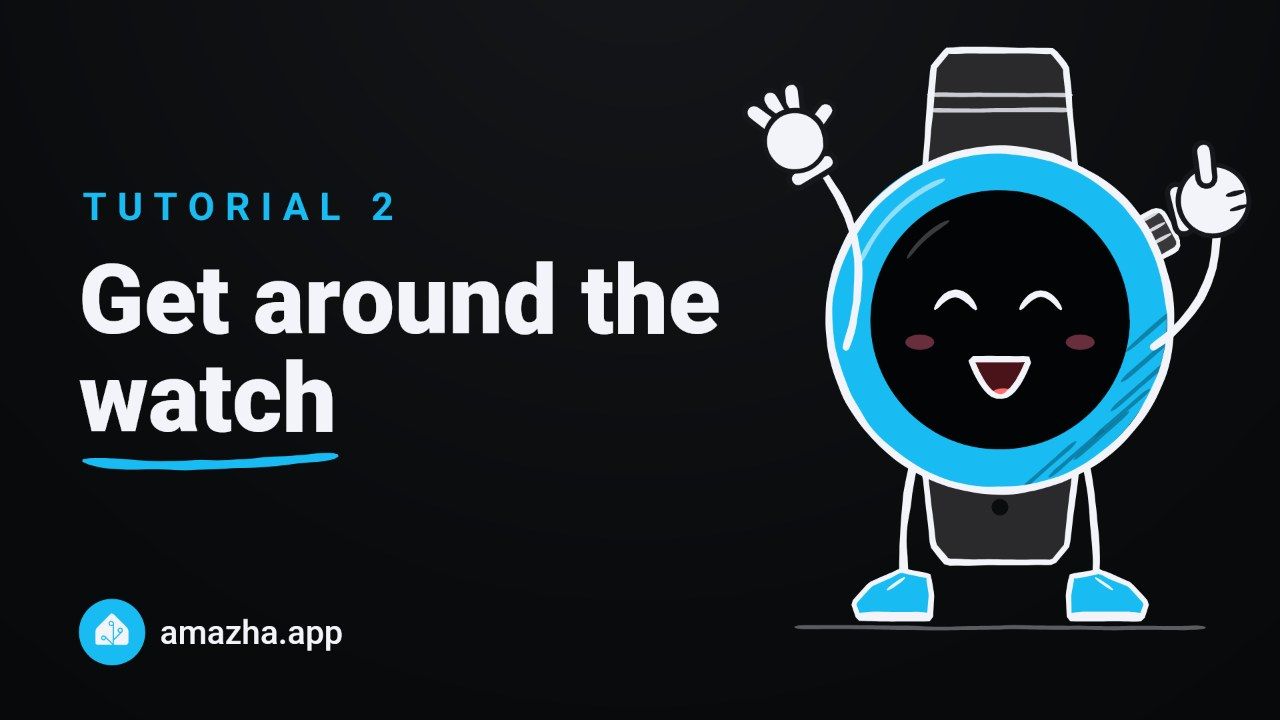
Tutorial 2: Get around the watch. The AmazHA mascot next to the title of the tutorial.

Step by step

  1. Tap a chip

    The chips at the top of the home count what is on. Tap one to see those devices in a single list, from every room.

  2. Swipe right to go back

    Swipe right to return to the previous screen, or tap ‹ at the top.

  3. Open a room

    Tap a room to see its devices, grouped by type. Lights, switches and fans have a switch right on their tile.

  4. Tap a tile for full controls

    Tap a device's tile to open its own screen. Turn the crown to set the level: a light's brightness goes up in 4% steps.

A screen for every device

  • Climate

    Turn the crown to change the temperature by half a degree, and tap a mode to switch it.

  • Covers

    Open, stop or close with the buttons, or drag the slider, or turn the crown.

  • Alarm

    Arm it with a tap, in the modes your panel supports. Disarming asks for your code.

  • Locks

    Tap once, then tap again to confirm: the second tap unlocks.

  • Media

    Play, pause and skip. The crown sets the volume.

  • Vacuums

    Start it from your wrist, pause it, or send it back to its dock.

  • Scenes

    One tap on the tile's switch runs a scene. Scripts and buttons work the same way.

Tip

From version 0.12.15, swipe right to go back on every screen. That includes lights, fans and covers, even across the slider: only moving the slider up or down keeps you on the page. On the media and climate screens, a swipe along the volume bar or the ring moves it, so start your swipe from the title instead. On the screen of a light, a switch or another control, you can also tap anywhere along the top (the ‹ arrow, the name or the room) to go back. On earlier versions, tap ‹ on the screens with a slider.

All tutorials