Tutorial 41:00

Connect Home Assistant

AmazHA reaches Home Assistant through your phone. It needs two things, entered once: the address of your server and a long-lived access token from an administrator.

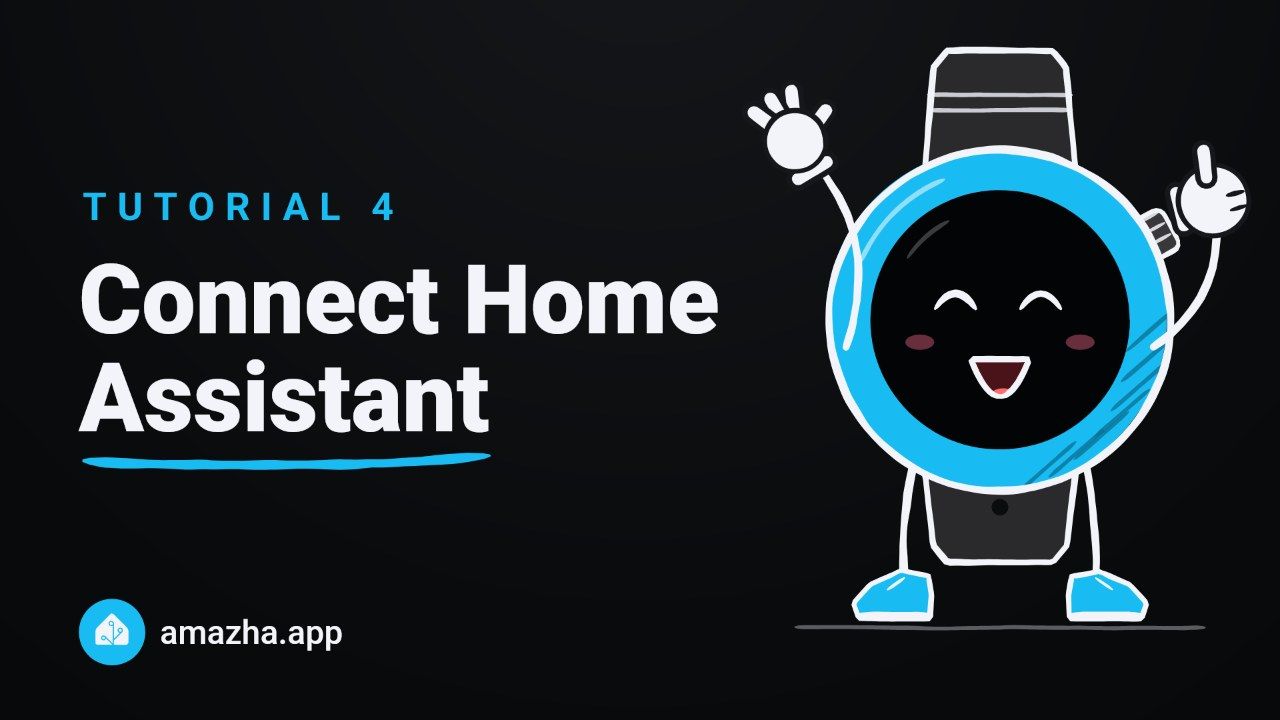
Tutorial 4: Connect Home Assistant. The AmazHA mascot next to the title of the tutorial.

Step by step

  1. Open Home Assistant

    Open the Home Assistant app, or Home Assistant in your browser, signed in as an administrator.

  2. Go to your profile › Security

    Open the side menu (≡) and tap your name at the bottom. In your profile, open the Security tab.

  3. Create a token, copy it

    Under Long-lived access tokens, tap Create token, give it a name (for example AmazHA) and copy it. Home Assistant shows it only once.

  4. Open the AmazHA settings

    In the Zepp app, go to Profile › your watch › Apps › AmazHA › Settings, then tap Home Assistant.

  5. Your address at home

    In Local URL (LAN), enter the address you use at home, for example http://192.168.1.50:8123.

  6. Your address from outside

    In Remote URL, enter the address that works away from home: Home Assistant Cloud (Nabu Casa), a VPN or your own domain. Either field can stay empty, and AmazHA picks the right one.

  7. Paste the token

    Paste it into Long-lived access token. One token serves both addresses.

  8. Tap Connect

    Tap Connect. With both addresses set, the result shows each one, LAN and Remote, both green. With one address it reads Connected.

Good to know

No devices on the watch yet? That’s normal: every device starts hidden, and you choose them next.

Tips

  • Only the server address, with nothing after it: http://192.168.1.50:8123, not http://192.168.1.50:8123/lovelace. With a path left on, AmazHA warns that the address answers, but not with the Home Assistant API.
  • Use an administrator’s token. A token from a regular user connects, but the watch cannot load your rooms, and AmazHA says so under Connect.

All tutorials